PDF Scanner : Document Scan
- 4.7
- Rating
- 100.00K
- Installs
- Free
- Price
 Analysis by App-foxy
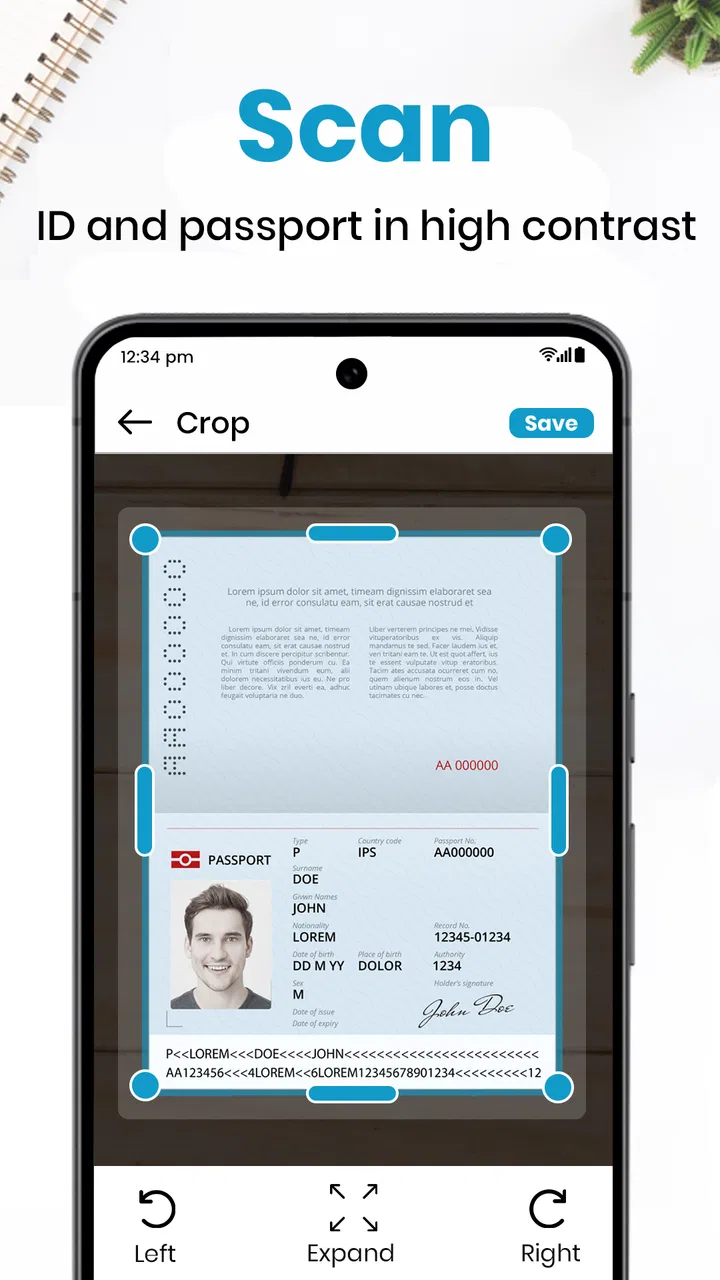
I spent time with PDF Scanner : Document Scan as a practical business tool rather than treating it like a simple camera replacement. Its purpose is clear: turn paper documents into PDFs, then give you ways to create and edit those files from a phone. That makes it appealing when a scanner is not nearby, especially for receipts, signed forms, notes, and documents that need to be sent quickly.
What stood out to me is that the app sits between two familiar options. A regular phone camera is quick but leaves you with an awkward image, while a desktop scanner usually produces cleaner pages but demands more equipment and time. This app aims for the middle ground. It is free to start, available for Everyone, and developed by Appverse Ltd. Its current version is 7.9, and it runs on Android 7.0 or later.
The app has built a solid audience for this kind of utility, with over 100K installs and a 4.7 average from around 645 ratings. Those figures do not replace personal testing, but they do suggest that the basic workflow is meeting a real need. I found the strongest case for it in short, practical tasks where speed matters more than archival scanning quality.
You May Also Like

 Blood Strike: 2.5 Anniversary
Blood Strike’s Loadouts Turn Every Drop Into a Tactical Gamble
A close look at Blood Strike’s custom loadouts: how fast access to signature weapons reshapes its battle royale rhythm, rewards preparation, and narrows the gap between fights.

 Pandora - Music & Podcasts
Pandora’s Music Is Easy to Start, but Harder to Recover
Pandora’s strength is its low-effort path from a seed to a station. Its weak spot is how much confidence it asks you to place in connection, setup, and quiet recovery.

 8 Ball Pool
8 Ball Pool Is Built on Rivalries, Rematches, and Routine
A close look at the rivalries, rematches, shared routines, and unanswered safety questions that turn a quick pool match into a persistent mobile community.

 Samsung Music
Samsung Music’s Quiet Strength Is Playing What You Already Own
Its reach comes less from spectacle than from dependable access to a personal library. That simplicity is both the app’s strongest retention engine and its ceiling.

 AccuWeather: Weather Radar
AccuWeather Review: A Quick, Clear Forecast for Everyday Decisions
For everyday plans, the best forecast is the one you can understand quickly. AccuWeather makes rain timing, radar, and local conditions easy to act on, with a few trade-offs.

 Hill Climb Racing
Why Hill Climb Racing Still Turns Crashes Into One More Run
A tiny car, a bumpy hill and one more upgrade: Hill Climb Racing keeps resurfacing because its simple chaos makes every near-miss feel personal.
More From Our News Desk



How PDF Scanner : Document Scan fits into connected mobile work
I find it helpful to think of PDF Scanner : Document Scan as one step in a larger mobile task, not the whole handoff: it can prepare paper as a PDF, while the next step is deciding where that file belongs and who should receive it. In this section, I’ll focus on keeping that transition deliberate—especially when a document is sensitive or time-critical—before looking at how to make the finished file easier to retrieve later.
Where the network matters most
The scanning action itself feels like something you naturally do away from a desk: point the phone at a page, capture it, adjust the result, and prepare a PDF. However, the complete experience is not only about taking a picture. A document app becomes most useful when the file can move to the next person, service, or device, and those steps often depend on connectivity.
That distinction is important. I would not judge this app solely by how quickly it captures a page. I would judge it by how smoothly it helps me finish a task that began with paper. If I am submitting an expense receipt, sending an identification form, or sharing a signed agreement, the scan is only one part of the job. The final handoff may involve an online form, email, cloud storage, or a messaging service outside the scanner itself.
In a strong connection, the workflow feels appropriately direct. I can focus on framing the page, checking the result, and creating the PDF instead of setting up a scanner. The app is particularly convenient when the paper is in front of me and the recipient is waiting. That is a better fit for quick business administration than for a large batch of documents that deserves careful desktop organization.
There is also a practical reason to separate capture from delivery. If the network is slow at the moment I scan, I do not want to rush the camera work simply because I am thinking about sending the file. I get better results when I treat the process as two stages: make a readable document first, then handle sharing or submission when the connection is dependable. That habit reduces avoidable mistakes.
Everyday mobile situations where it makes sense
One realistic example is a freelancer meeting a client in a café. The client signs a short agreement, and the freelancer needs a usable copy before leaving. Instead of photographing the page at an angle and hoping the text remains readable, the freelancer can use the phone as a temporary document station, create a PDF, inspect it, and continue the conversation. The value is not fancy scanning theory; it is avoiding a return trip to the office.
I also see a good fit for small businesses that receive paper invoices or delivery notes during the day. A staff member can capture the document at the counter, create a digital copy, and keep the administrative process moving. The app is more useful here than a camera roll because a PDF is easier to treat as a finished business document than a loose image.
Students and remote workers can benefit too, particularly when a form must be completed from a phone. A paper page can be captured, converted into a more manageable document, and edited before it is sent onward. I would still check every field visually. A scanner app can make a page look tidy without guaranteeing that every small character, checkbox, or handwritten mark is perfect.
The mobile advantage has limits. A phone is easy to carry, but it is also easy to move while capturing. Dim rooms, glossy paper, curved pages, and crowded backgrounds can all make the result less reliable. I got better outcomes by placing the document on a flat surface, avoiding harsh reflections, and taking a moment to align the edges instead of snapping immediately.
Editing is useful, but it changes the responsibility
The editing tools are one of the reasons to choose this app over a basic camera. A document can be prepared as a more presentable file rather than left as an unprocessed photograph. That is helpful when the recipient expects a PDF or when several pages need to be kept together.
Still, editing should not be confused with correcting facts. Cropping a page, improving its presentation, or arranging a document is one thing; changing a number on an invoice or altering a signed form is another. I recommend keeping the original paper nearby until the final PDF has been checked. This is especially important for financial records, applications, and anything where a tiny visual change could have consequences.
A useful workflow is to scan one page, inspect the corners and text, and only then continue with the rest. Capturing a whole stack before checking the first result can create a frustrating cleanup session. This is one of the less obvious trade-offs of phone scanning: speed at the camera stage can become wasted time later if the lighting or framing was wrong.
What happens when connectivity is unreliable
Connectivity affects the experience most at the edges of the workflow. A weak signal can make sharing, uploading, or completing an external submission feel uncertain, even when the document itself has already been captured. I prefer to finish the scan and review it before attempting any network-dependent handoff. That way, a failed send does not force me to repeat the camera work.
If a task is urgent, I would also avoid assuming that a successful-looking screen means the recipient has received the file. The app can help prepare the document, but the next service may have its own upload delay, attachment limit, or login requirement. Keeping the finished PDF available until delivery is confirmed is a simple precaution that matters more than it sounds.
Recovery is easier when I use a predictable naming habit outside the capture moment. For example, I might identify a document by its purpose and date in a way that makes sense to me, rather than leaving several scans with vague names. This is not a glamorous feature, but it prevents the common problem of sending the wrong version after a connection interruption or a hurried retry.
Another useful recovery habit is to inspect the complete document before closing the task. A first page may look excellent while the last page is cut off, upside down, or too dark. This is particularly easy to miss when the network is distracting me with a slow upload. I would rather spend a few seconds reviewing the PDF locally than discover the problem after submission.
Using it without wasting mobile data
Document scans can become surprisingly large, especially when several pages are involved. I would avoid repeatedly sending test copies over mobile data. First capture and review the page, then make one deliberate export or share attempt. If the document is going to a service that compresses attachments, I would also confirm that the final text remains readable after that service processes it.
For routine paperwork, Wi-Fi is the sensible choice when a large multi-page file needs to be transferred. That does not mean the app is useful only at home or in an office. It means the best place to complete the network portion of the job may differ from the place where the paper is captured. The phone lets me separate those moments instead of forcing one uninterrupted session.
Data-conscious use also means avoiding unnecessary duplicate files. If I scan the same receipt several times because the first attempt was poorly framed, I create clutter and may later share the wrong copy. A quick lighting and alignment check before capture saves storage, time, and bandwidth. In my experience, preparation is more valuable than trying to repair a weak scan afterward.
Privacy deserves a practical mention even without making assumptions about the app’s policies. Business documents can contain addresses, account details, signatures, or internal information. I would avoid scanning sensitive paperwork in a public place when the screen can be seen, and I would be careful about where the resulting PDF is sent. The fact that a document can be digitized quickly does not mean every destination is equally appropriate.
How it compares with the usual alternatives
A phone camera remains the simplest alternative. It wins when I only need a visual reference and do not care whether the result looks like a formal document. For a single page that will stay in my personal photo library, opening the camera may be faster. PDF Scanner : Document Scan becomes more worthwhile when the output needs to look organized, be edited, or travel as a document rather than as an image.
A desktop scanner is still the better choice for high-volume office work, consistent paper handling, and careful archiving. It offers a more controlled setup and is less dependent on hand positioning. I would choose a desktop device for recurring batches, legal records that require a standardized process, or an office where many pages are scanned every day. The phone app is the flexible backup and the convenient field tool, not a universal replacement.
Built-in scanning tools on some phones can also be attractive because they may already be familiar. The reason to use this particular app is its focus on creating and editing PDFs as a dedicated business workflow. That focus can reduce the number of steps compared with taking an image first and figuring out document handling later. The trade-off is that a dedicated app adds another place to manage files and another interface to learn.
The free entry point makes experimentation easy, but the app also includes in-app purchases ranging from $3.99 to $38.99 per item. I would try the core workflow with a few ordinary documents before paying for anything. The right value depends on how often I scan and whether the available editing and document tools save enough time to justify the purchase. Someone who scans once a month may be perfectly satisfied with occasional use; someone handling paperwork every day may see more benefit.
Who should use it and who should look elsewhere
I would recommend it to freelancers, students, mobile workers, small business owners, and anyone who regularly needs to turn paper into a sendable PDF without carrying a scanner. It is especially suitable for short jobs where the document starts in the real world and needs to enter a digital workflow quickly.
I would be more cautious about recommending it to someone who needs guaranteed uniformity across a large archive. If every scan must follow a strict office standard, a dedicated scanner and established document-management process may be less frustrating. I would also steer away from relying on a phone alone for fragile originals, very small print, poor lighting, or pages that must be reproduced with exceptional precision.
The age rating of Everyone makes it broadly approachable, and the Android requirement of 7.0 or later covers many older devices. Even so, the quality of the result depends heavily on the phone’s camera, screen, lighting, and the user’s patience. Compatibility makes installation possible; it does not make every handset equally good at capturing paper.
My practical verdict on the connected workflow
After using it as a document tool rather than a novelty camera, I found the strongest benefit in reducing the distance between paper and action. The app helps me create a more useful file while I am away from a desk, then lets me decide when and how to complete the connected part of the task. That separation is valuable when the network is inconsistent or when I need to review sensitive paperwork before sending it.
Its weaknesses are mostly practical rather than mysterious: phone positioning affects quality, multi-page jobs require attention, and the final delivery may depend on services beyond the app. I would not treat it as a guarantee that every scan is submission-ready. I would treat it as a capable mobile workspace that rewards a careful capture-and-check routine.
For a free business app from Appverse Ltd, the combination of scanning, PDF creation, and editing gives it a clear role. My recommendation is strongest for people who need occasional or regular document capture in changing locations. If your work happens beside a reliable desktop scanner, that equipment will probably remain more efficient. If your work happens wherever the paperwork appears, the real advantage is having a usable document workflow in your pocket.
In short, I would install it for receipts, forms, agreements, and everyday paperwork that cannot wait for office equipment. I would keep the original until the PDF has been checked, separate capture from upload when the connection is poor, and test the free experience before considering an in-app purchase. Used with those expectations, PDF Scanner : Document Scan is a practical choice for turning mobile moments into finished business documents.
FAQs for PDF Scanner : Document Scan
01What is PDF Scanner: Document Scan, and what can it do?
PDF Scanner: Document Scan is a mobile scanning tool designed to turn paper documents, receipts, notes, forms, and other printed materials into digital files using your phone’s camera. During testing, the app was useful for quickly capturing pages, correcting perspective, improving readability, and saving documents as PDFs. It is aimed at everyday users who need a convenient alternative to a traditional scanner.
02Does PDF Scanner: Document Scan require an internet connection?
The basic scanning process generally works directly on the device, so you can capture documents without being connected to the internet. This is useful when scanning receipts, class notes, or paperwork while traveling. However, certain features may depend on online services, including cloud synchronization, sharing integrations, account functions, or advanced text recognition. Availability can also vary according to the app version and device.
03Can the app recognize text and create searchable documents?
PDF Scanner: Document Scan may include OCR or text-recognition features that identify printed words in captured pages and make them easier to search or copy. Results are usually best when the document is flat, well lit, sharply focused, and printed in a clear font. Handwriting, curved pages, decorative fonts, shadows, and low-resolution images can reduce accuracy, so important information should always be checked manually.
04Is PDF Scanner: Document Scan free to use?
The app can typically be downloaded at no initial cost, but some tools may be restricted by advertisements, watermarks, scan limits, export options, or premium subscriptions. Before starting a long scanning project, review the in-app pricing and subscription terms carefully. Also check whether a trial automatically converts into a paid plan and confirm what cancellation options are available through Google Play or the App Store.
05Are documents scanned with PDF Scanner: Document Scan secure and private?
The app can be convenient for digitizing personal paperwork, but privacy depends on how it stores, processes, and shares scanned files. Avoid scanning highly sensitive documents until you have reviewed the app’s privacy policy and requested permissions. Use device security, share files only with trusted recipients, and delete unnecessary scans from the app and cloud storage. Remember that a PDF may contain personal data even after export.
Pros
- Quickly turns paper documents into clear PDF files.
- Automatic edge detection helps speed up scanning.
- Supports multi-page documents in a single file.
- Useful filters improve readability of faded pages.
- Simple sharing options make sending scans convenient.
Cons
- Some advanced tools may require a premium subscription.
- OCR accuracy can vary with handwriting or unusual fonts.
- Scans may use considerable storage when saved at high quality.
- Ads can interrupt the experience in the free version.
- Large documents may take longer to process on older devices.

PDF Scanner : Document Scan
Gallery